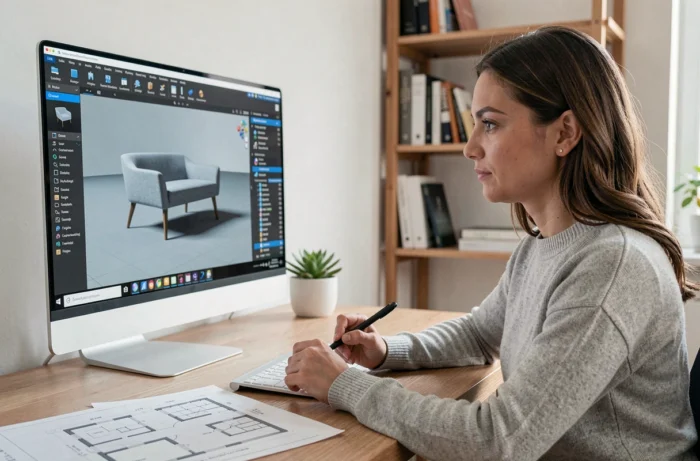
We want to place a specific armchair found on CGTrader in our virtual living room, but the import function refuses to launch. Before discussing formats or drag-and-drop, the first reflex should concern the type of account used. Recent feedback from users shows that free versions or certain regional variations of HomeByMe block the import of custom objects. Checking your subscription helps avoid wasting time looking for a bug that isn’t one.
Check your HomeByMe subscription before any import attempt
The 3DUpload feature, which allows you to upload your own 3D models, is not available at all subscription levels. Free accounts have access to the standard catalog and generic furniture, but importing personal files is reserved for paid plans.
In practice, it is observed that even among subscribers, behavior can vary depending on the regional version of the platform. Some users report not seeing the import button even though they have an active account. The solution often involves a direct check in the account settings, under the “My Subscription” tab.
For those who want to import custom objects into HomeByMe without unpleasant surprises, checking the subscription level remains the prerequisite for any technical manipulation.
The Unlimited+ subscription adds an extra layer: private mode, which prevents your imported models from appearing in public libraries. If you are working on a client project with custom furniture, this option changes the game.

3D file formats compatible with HomeByMe: choose the right one from the start
The file format directly affects the rendering quality and processing speed. HomeByMe accepts several formats, but not all are equal.
- .glb and .gltf are the formats recommended by the platform. They integrate textures and geometry into a compact file, which speeds up loading and limits display errors.
- The .obj format is still supported, but textures must be linked manually, and the final result is often less faithful to the original model.
- The .dae (Collada) format also works, but there is no guarantee of suitable rendering. It is used more as a last resort when the source file cannot be converted otherwise.
In practice, if you download a piece of furniture from a library like CGTrader or Sketchfab, you should prioritize downloading in .glb. Most libraries offer several formats for the same model.
Convert a file before import
When the model is only available in .fbx or .blend (Blender’s native format), conversion is necessary. Free tools like the online version of Blender or dedicated converters allow you to export to .glb in just a few clicks.
The classic trap: exporting without embedding the textures. The file passes the import, but the object appears completely gray in the project. Always check the “embed textures” option when exporting to avoid this issue.
Import procedure in the HomeByMe project: the concrete steps
Once you have the right format and have verified your subscription, the import itself is quick. Open your project in the Planner, then access the 3DUpload function from the catalog menu.
The principle is to drag and drop the file into the designated area. The processing takes a few minutes depending on the complexity of the model. During this time, HomeByMe converts the file to integrate it into its rendering engine.
The imported object then appears in the “My Imports” section of the personal catalog. You place it in the scene like any piece of furniture from the standard catalog: click, move, rotate.
Adjusting scale and position
A model downloaded from an external library may not have been modeled to real dimensions. Checking the object’s scale upon first placement helps avoid ending up with a three-meter-high chair in the middle of the living room.
HomeByMe allows you to resize imported objects directly in the Planner. You can adjust height, width, and depth independently. For furniture, the most reliable method is to place the object next to a generic piece of furniture whose dimensions you know, then visually correct it.
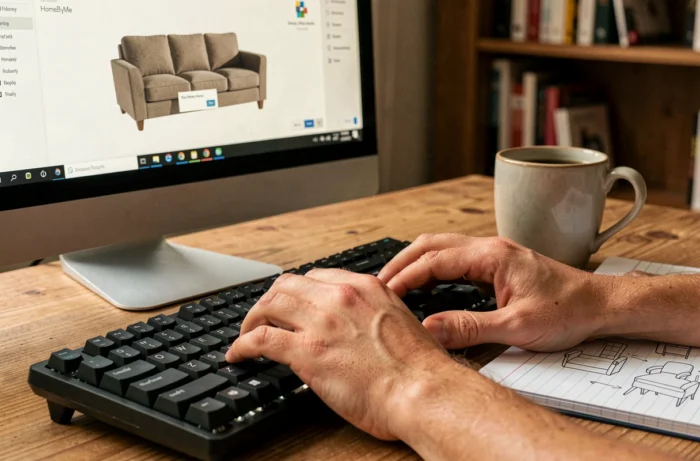
Realistic rendering with imported objects: what changes compared to the native catalog
Furniture from the HomeByMe catalog benefits from pre-optimized materials for the rendering engine. An imported object, even in .glb with embedded textures, may yield a slightly different result in HD or 4K images.
Heavy textures slow down rendering without visibly improving quality. Conversely, low-resolution textures go unnoticed in a global view but become apparent in a close-up. Feedback on this point varies depending on the power of the machine and the complexity of the project.
Reducing texture sizes to a reasonable maximum before import is a good compromise. You maintain visual quality without overloading the project.
Planner update and material customization
The HomeByMe Planner update in April 2026 expanded the options for customizing materials directly in the interface. You can now modify textures and finishes on generic furniture with more choices. For imported objects, this customization remains limited: the materials defined in the source 3D file take precedence over the Planner options.
If you want to change the color or texture of an imported object, the most reliable approach is to modify the source file in modeling software and then reimport it. The redesigned catalog, however, facilitates mixing customized generic furniture and imported objects in the same project.
Importing custom objects into HomeByMe works well as long as you follow the chain: correct subscription, correct format, embedded textures, scale verification. Each neglected step pays off at the time of final rendering when a gray floating piece of furniture ten centimeters off the ground ruins an image you wanted to show a client.